Spider Solitaire Freecell Free Download
By Rajat Agarwal, Founder of Play Solitaire Gaming
Spider solitaire freecell free download. Skip the downloads. Learn how to play Spider Solitaire and FreeCell for free instantly in your browser, save as an app
You're looking for Spider Solitaire and FreeCell free download options because you want to play now, not compare installer buttons, dismiss pop-ups, or wonder whether an unfamiliar executable is safe. The practical alternative is simpler: open a reputable browser game, choose Spider or FreeCell, and start a round without adding another app to your phone or computer.
Browser play isn't a stripped-down substitute. A well-built web version can provide touch controls, hints, unlimited undo, daily challenges, and optional progress sync while keeping the path from search to gameplay short. Downloading still has a place for offline access, but for most casual sessions, instant play creates fewer privacy, security, and maintenance problems.
Table of Contents
- Instant Browser Play vs Download Friction
- How to Play Spider and FreeCell Free Without Downloading
- Save Solitaire as an App on Phone or Desktop
- When a Free Download Makes Sense and How to Stay Safe
- Spider Difficulty, FreeCell Solvability, and Browser Features
- Practical Recommendations for Casual and Competitive Play
Instant Browser Play vs Download Friction
Search results for “Spider Solitaire FreeCell free download” often lead to an app store, an installer, or a page that makes the download button more prominent than the game itself. That adds friction before you've even seen the cards. It can also expose you to bundled software, aggressive advertising, tracking requests, or a misleading button that downloads something unrelated.
Browser play removes most of that delay. Open a trusted solitaire site, select Spider Solitaire or FreeCell, and begin without creating an account. If you only want a short break, this is the sensible route because there's nothing to uninstall afterward and no new app competing for storage or notifications.
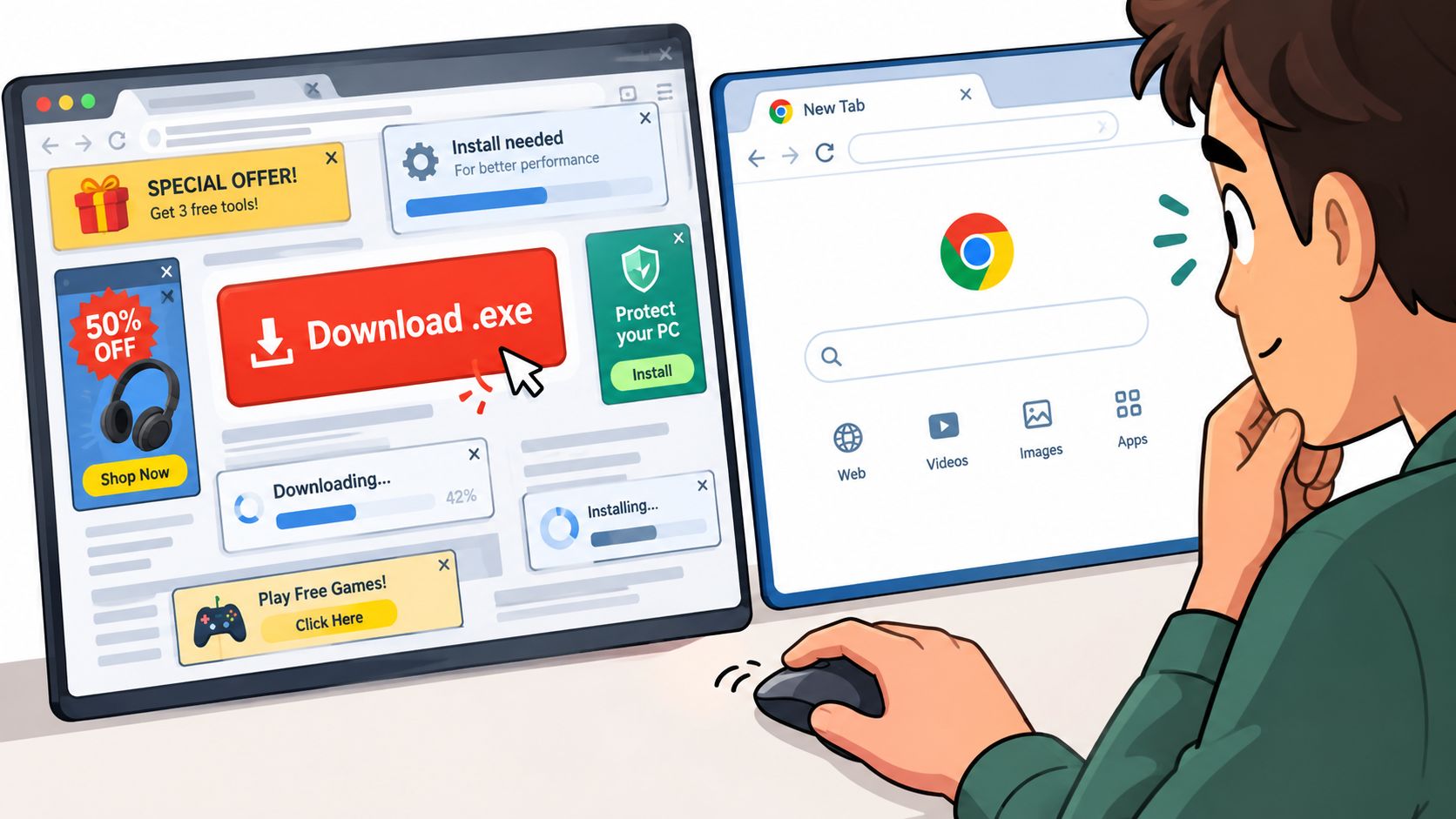
Practical rule: If a solitaire page makes you download an executable before showing the game, leave and look for a playable browser version first.
What to check before playing
A clean page should make the game obvious and keep the controls understandable. Look for:
- Immediate gameplay: The cards should load in the browser without a forced installer.
- Clear controls: Undo, redo, hint, new game, and difficulty settings should be visible rather than hidden beneath layers of advertising.
- Device support: The layout should work with a mouse on desktop and taps on a phone.
- Optional accounts: Signup should be unnecessary for a basic round.
- Transparent privacy choices: A game shouldn't demand unrelated permissions to deal cards.
For a broader comparison of no-install options, use this guide to free online solitaire choices. The useful distinction isn't whether a game is technically free. It's whether you can reach a playable deal without accepting unnecessary software or interruptions.
The browser route also suits privacy-conscious players. You can play a session without handing over an email address, installing background components, or granting an app permissions you don't need. That doesn't mean every website is equally trustworthy, so still check the address, connection security, publisher information, and visible privacy policy.
This short demonstration shows the kind of instant, browser-based experience to look for:
A download may be legitimate, but it shouldn't be the default answer to a casual game search. If the browser version gives you the same variant, controls, and game history features, it usually offers the shortest path to the first move.
How to Play Spider and FreeCell Free Without Downloading
A clean browser session can put you into a deal before an app-store search has finished. Open a trusted game page, select Spider or FreeCell, and use its new-game control. The practical test is simple: the cards should load clearly, the controls should respond, and registration should not block the first move.
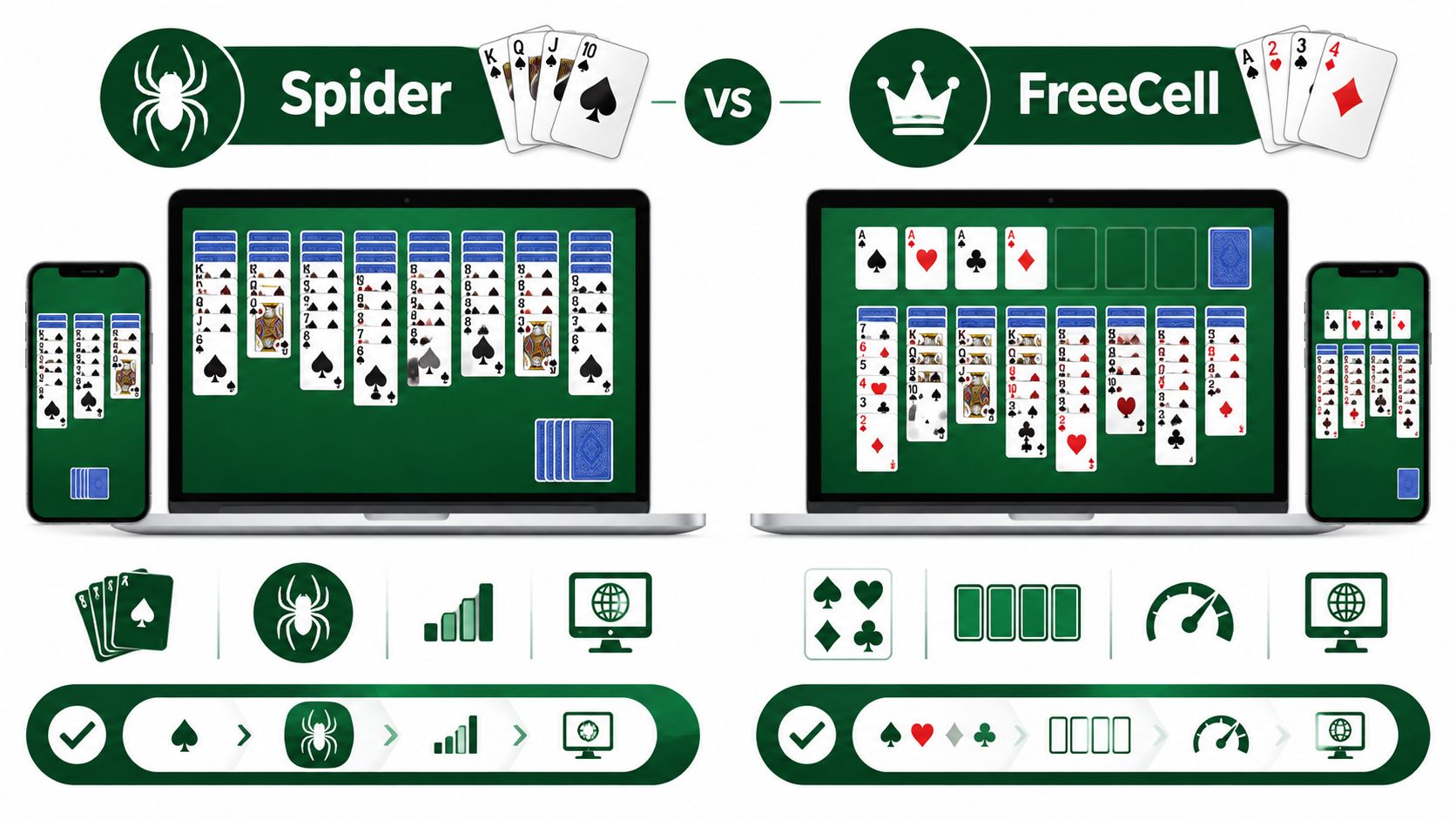
The variants demand different habits. Spider Solitaire uses two standard 52-card decks, or 104 cards, with 54 cards initially placed across 10 tableau columns and 50 cards in the stock, as described in the Spider Solitaire rules. The first four columns receive 6 cards each, and the remaining six receive 5 cards each. You can deal another row only after every tableau column has at least one card.
FreeCell shows the full puzzle from the start. It uses all 52 cards face up in eight tableau columns, with the first four columns containing 7 cards and the remaining four containing 6 cards, plus four empty free cells and four empty foundations, according to these FreeCell rules. Since there is no stock, you can plan around every visible card instead of reacting to hidden information.
Test the game before committing to it
Start with one deal and inspect how the page behaves. For a gentler introduction, choose one-suit Spider. A more complex Spider setting rewards longer planning, while FreeCell suits players who prefer complete information.
Check card movement before playing seriously. Desktop users should get precise drag-and-drop control. On a phone, tap-to-move and generous touch targets reduce misplays when the tableau is narrow. Try moving a sequence, not just a single card, and confirm that undo returns the deal to the expected position.
Hints should identify a legal or useful move rather than play the game for you. Undo is more valuable when treated as analysis: test a decision, review the resulting position, then return without discarding the deal. Close any overlay that covers cards or interrupts movement. A free game becomes impractical when advertising makes the tableau difficult to read.
The Spider Solitaire how-to-play guide explains suit rules and stock restrictions if those mechanics are unfamiliar. Browser play keeps the challenge focused on decisions, while avoiding the installer, permissions, and extra steps associated with many download pages.
On a phone, rotate the device if the tableau feels compressed, enlarge browser text or display settings when labels are hard to read, and avoid dragging through pop-up areas. On desktop, a mouse usually provides greater precision. Keyboard support can also help players who prefer alternatives to dragging.
Save Solitaire as an App on Phone or Desktop
You can turn a browser game into a practical app shortcut without installing an unknown program. Open a trusted Spider Solitaire or FreeCell page, confirm that it works, then save that page to your phone's home screen or your computer's desktop.
On iPhone or iPad, open the game in Safari, tap Share, and select Add to Home Screen. Use a clear name such as Spider Solitaire or FreeCell. On Android, open the page in Chrome and choose Add to Home screen, or accept the browser's install prompt when it appears. Use only the browser's own menu. A floating “download” button on the page may lead somewhere else.
Use the browser's installation signal
A progressive web app, or PWA, can show an install icon in the address bar or an app option in the browser menu. The result is a launchable shortcut and sometimes a separate app-like window. It should not require a random executable, unrelated permissions, or changes to your device settings.
Test the game in a normal browser tab first:
- Load a complete deal: Make sure the tableau, cards, and controls appear correctly.
- Test touch movement: Move several cards, including a sequence, to check that dragging and tapping respond accurately.
- Open the settings: Confirm that hints, undo, sound, and display controls are easy to find.
- Review account choices: Play as a guest unless you specifically need progress synced between devices.
- Reject unrelated notifications: Decline browser alerts that do not support solitaire play.
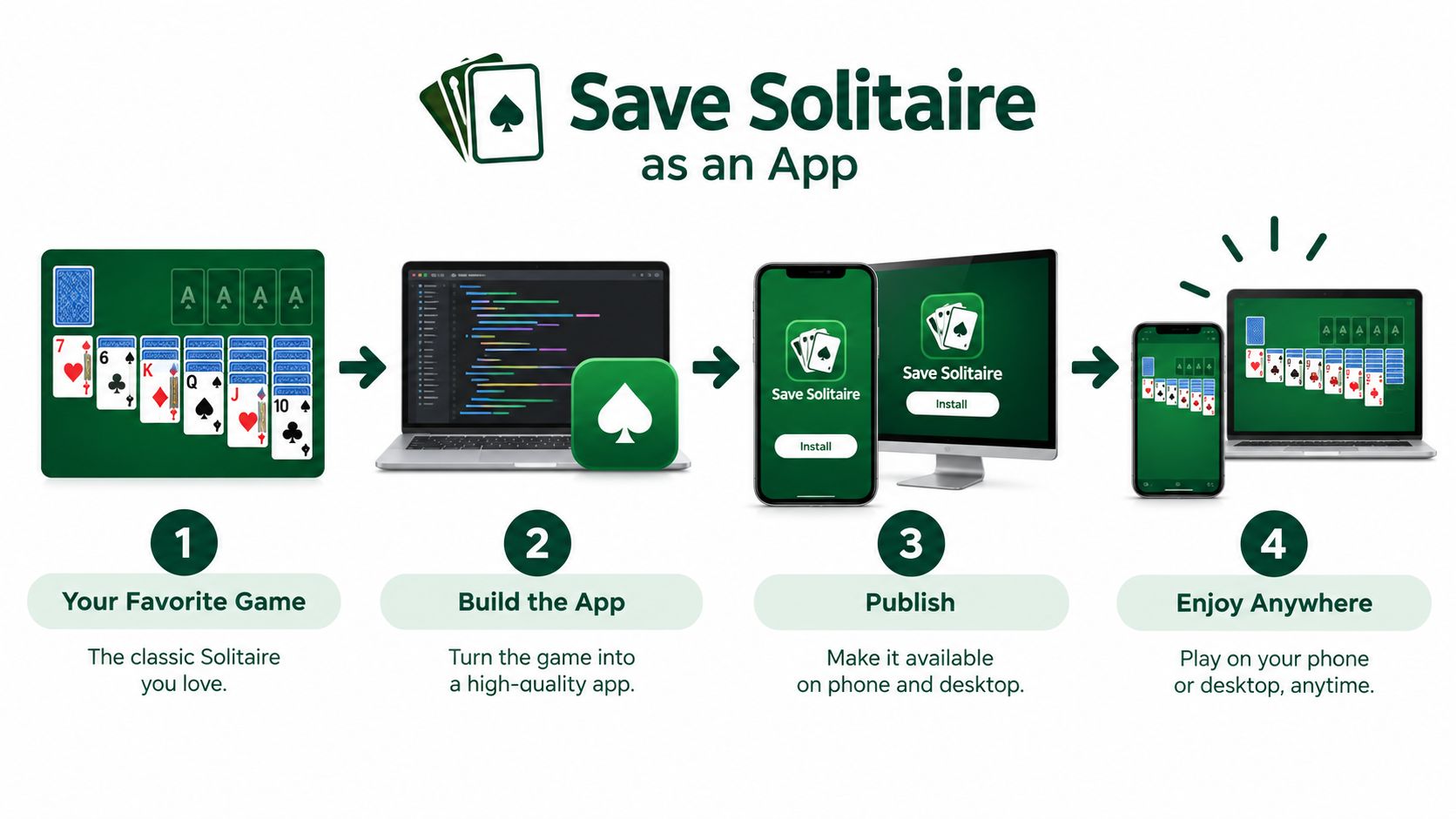
On Windows or macOS, Chrome-based browsers may display an install icon when the site supports app-style installation. If no icon appears, use the browser's bookmark or shortcut command and place it on the desktop. You get quick access without installing software that could change startup settings, add extensions, or remain on the computer after you stop playing.
Before saving the shortcut, compare ad-free solitaire app options. For casual games, a guest session avoids leaving login credentials on shared devices. If you want streaks or statistics across devices, create an account only after checking what the service stores, how it uses that information, and how you can remove the account later.
When a Free Download Makes Sense and How to Stay Safe
A download has a narrower use case than browser play. Choose one when you need offline access, want a local desktop client, or prefer an interface unavailable on the web. The trade-off is ongoing maintenance. You must find the installer, verify it, apply updates, and remove it later. Browser play avoids most of that friction while still providing the complete game experience.
A trustworthy download should come from the publisher or a recognized software store. Treat multiple competing “Download” buttons, fake system warnings, and requests to disable browser security as warning signs. Check that the installer names its publisher, uses a sensible file name, and matches your operating system.
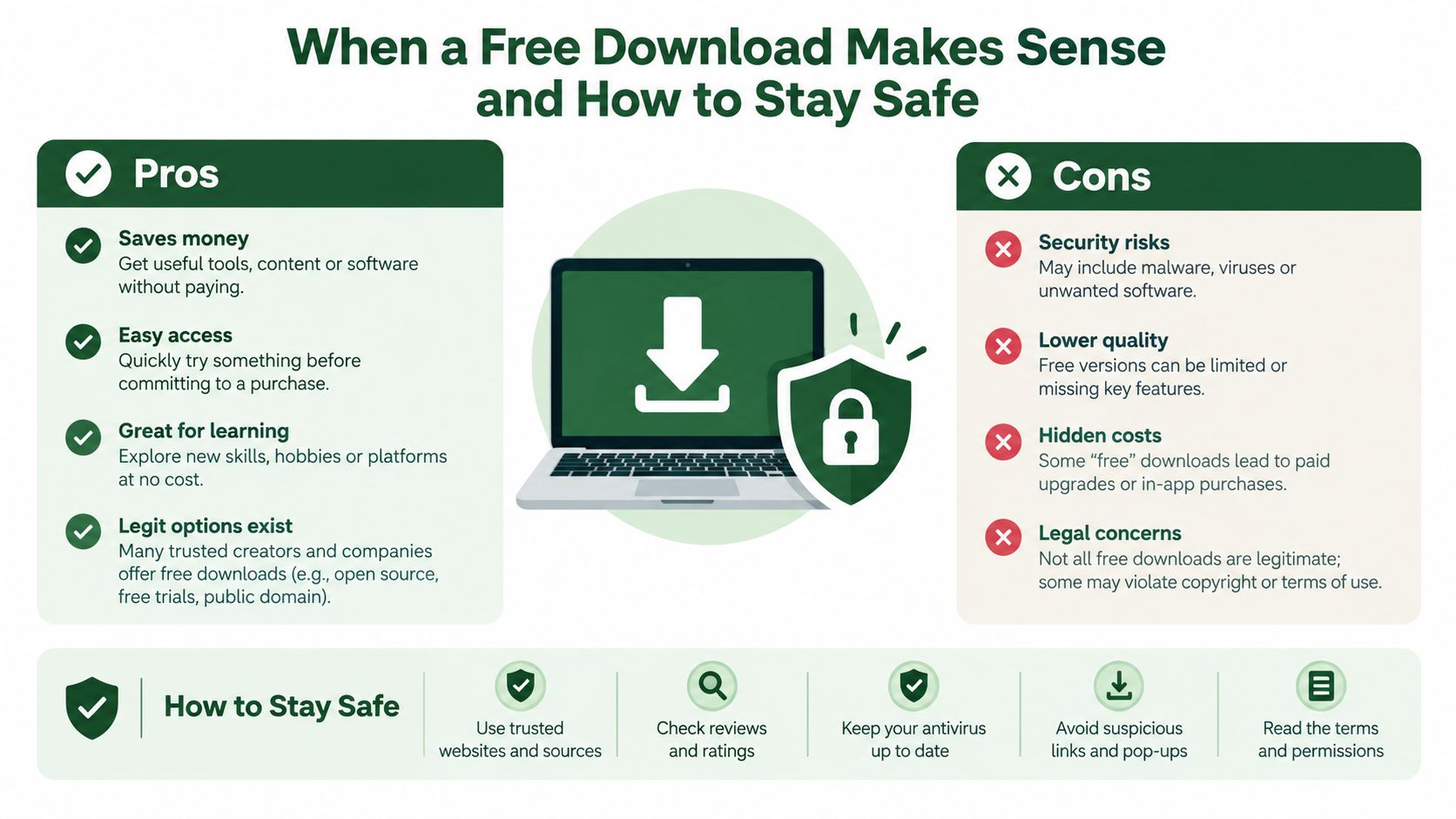
Before opening the file, check five points:
- Publisher identity: Match the developer with the official website or store listing.
- Installer behavior: Cancel setup if it offers unrelated toolbars, extensions, cleaners, or search changes.
- File consistency: Compare the name and version with the publisher's documentation. Use a checksum when the publisher provides one.
- Security scanning: Let your operating system and security software inspect the file.
- Permission requests: A card game should not request broad access to unrelated files, contacts, or device functions.
Old branding does not prove current safety. Microsoft bundled FreeCell with Windows versions through Windows 7, yet newer systems may provide different editions or store versions. Familiarity with the game is not verification of the installer.
For Android offline play, start with this classic Solitaire download guide for Android, then review the app's publisher, permissions, user feedback, and update history in the official store. If those details are difficult to confirm, browser play remains the lower-risk option. Save the site to your home screen instead of accepting an unverified package.
Spider Difficulty, FreeCell Solvability, and Browser Features
Spider and FreeCell are often searched together because they serve different moods. Spider begins with concealed cards and asks you to build suited runs while managing the stock. FreeCell displays every card, so the central question is not what might appear next, but whether your sequence of decisions leaves enough room to continue.
Spider's difficulty changes sharply with the number of suits. One independent dataset reported a 60.1% win rate for one-suit Spider, compared with 17.6% for current random two-suit Spider and 20.6% for four-suit Spider, as summarized in the Spider Solitaire and FreeCell comparison data. Those figures aren't promises for every player or deal, but they show why choosing the right mode matters. One suit offers a more forgiving introduction, while multi-suit play demands more careful sequencing and temporary rearrangement.
Why FreeCell is a useful benchmark
FreeCell is unusually good for evaluating your own play because the information is visible from the beginning. A corrected cohort recorded a 35.5% win rate across 4,426 eligible starts, while the original Microsoft catalog is reported as 31,999 solvable deals out of 32,000, and a later catalog is described as approximately 99.999% solvable, according to this FreeCell win-rate analysis.
That distinction matters. When almost every deal is designed to be solvable, a loss usually reflects move order, blocked columns, or poor use of free cells rather than an impossible layout. Each free cell holds one card, and the commonly stated movable-sequence rule is that the maximum sequence length equals the number of open free cells plus one. With four open cells, that permits a five-card sequence, as explained in these FreeCell movement rules.
Features that change the experience
The strongest browser features support learning rather than removing all decision-making:
- Unlimited undo makes experimentation safe.
- Smart hints reveal a possible direction when the position stalls.
- Readable touch layouts reduce missed taps on small screens.
- Tap-to-move alternatives help players who find dragging imprecise.
- Move review turns a failed deal into a lesson instead of a dead end.
Choose Spider when you want uncertainty, visual sorting, and escalating suit complexity. Choose FreeCell when you want a transparent planning exercise and a clearer way to study how each move affects the rest of the board.
Practical Recommendations for Casual and Competitive Play
For a casual session, start in the browser as a guest. Pick one variant, play a focused round, and use undo when a move deserves testing. This keeps the activity recreational rather than turning a short break into a search for another app, another login, or another installer.
If you want a regular routine, use a site with a daily challenge or rotating deals. That gives each session a clear starting point and can make progress easier to follow without requiring a permanent account. When streaks, leaderboards, or cross-device history matter, optional Google or Apple sign-in can provide private cloud sync, but it should remain a choice rather than a condition of play.
Match the setup to the player
| Goal | Practical choice |
|---|---|
| A quick break | Browser guest play with one-suit Spider or a straightforward FreeCell deal |
| Better planning skills | FreeCell with hints used only after you review the visible tableau |
| A harder puzzle | Two-suit or four-suit Spider, with undo available for move analysis |
| Play across devices | An optional account with clearly explained sync |
| Offline access | A verified store or publisher download, scanned before installation |
| Easier mobile play | Large cards, tap-to-move controls, and a layout that doesn't require precise dragging |
Protect the device by keeping the browser updated, declining irrelevant notification requests, and closing pages that obscure the game with urgent download warnings. On a shared device, guest play also avoids leaving unnecessary account details behind. If you save a shortcut, save only a page you've already tested and trust.
Play Solitaire Gaming offers browser versions of Spider Solitaire in one-, two-, and four-suit modes and FreeCell, with no download or signup required for basic play. Its wider collection includes other solitaire variants, along with drag-and-drop controls, hints, unlimited undo and redo, daily challenges, global leaderboards, and optional cloud sync.
The simplest decision is also the most reliable: play instantly when you want convenience, save a trusted browser page when you want an app-like shortcut, and download only when offline use justifies the added security checks. That path gives you the cards quickly without collecting software you don't need.
Visit Play Solitaire Gaming to play Spider Solitaire and FreeCell instantly in your browser, without downloads or signups. Choose the difficulty and controls that fit your device, then use daily challenges or optional sync when you want more structure.
Ready to play?