Free Classic Solitaire Download for Android
By Rajat Agarwal, Founder of Play Solitaire Gaming
Get free classic solitaire download for android with our practical guide to Play Store picks, browser-based no-install play, and safe sideloading tips.
You're probably standing in Google Play right now, staring at a grid of nearly identical red-and-white card icons. You want a quick game of Klondike, not a bloated download, a maze of permissions, or an ad that interrupts the first deal. The safest free classic solitaire download for Android starts with a short trust check, but the lowest-friction choice may be skipping the install entirely.
Android offers plenty of familiar options, and classic solitaire remains durable rather than disposable. Solitaire - Classic Card Games has been available since September 2011 and reached 150 million total downloads by late 2025, while its latest 30-day snapshot averaged about 8,000 downloads per day and roughly 240,000 downloads over 30 days on Android, according to its AppBrain listing. That history tells you the category has staying power, but popularity alone doesn't tell you whether an app is light, respectful, or pleasant to use.
Table of Contents
- Finding the Right Classic Solitaire on Google Play
- Installing Your Chosen App the Smart Way
- The No-Download Browser Alternative Worth Trying
- Permissions, Ads, and Privacy on Android Solitaire
- Sideloading Safely When You Really Need To
- Quick Fixes for Common Android Solitaire Problems
Finding the Right Classic Solitaire on Google Play
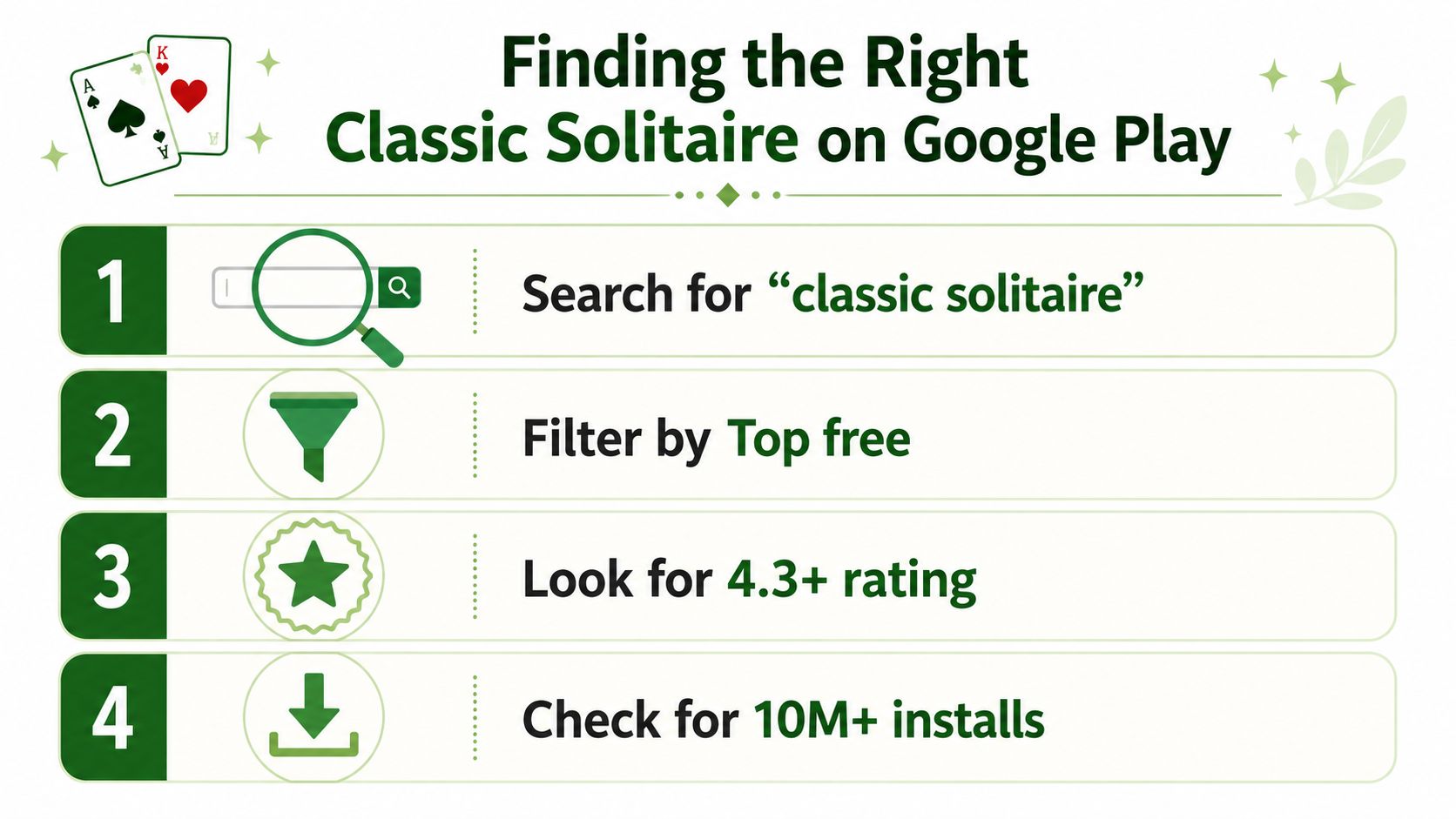
A quick Klondike game can turn into a poor install if you judge Google Play by the first red-and-white card icon. Search for “classic solitaire,” then compare the developer, listing history, app size, and requested access before downloading. Those checks matter more than a crowded install count.
Start with the listing signals. A strong rating, substantial install history, and recent update can identify an established game, but none proves that the app is light or pleasant to use. One major Android solitaire title passed 100,000 installs, 1 million installs, and 10 million installs by 2017, 2018, and 2019, then continued toward its 150 million total, as noted earlier. The wider Android gaming market is large too, with Google Play games generating 36.2 billion downloads in 2025 and all Google Play apps and games reaching about 104 billion downloads that year, according to this Android gaming market summary. Popularity helps you shortlist. It does not settle the trust question.
Read the listing like a tester
Open the developer page and inspect its catalog. A recognizable studio with maintained games is easier to assess than a publisher with one generic card app. Read the three most recent negative reviews. Repeated complaints about forced full-screen ads, crashes during a deal, confusing controls, or lost progress should remove the app from your shortlist.
Check the download size before you install. For a simple card game, anything over 80 MB needs a clear reason, especially when the game uses basic card faces and limited sound. Google Play guidance reports that every 6 MB increase in APK size can reduce install conversion by about 1%, while a roughly 10 MB app can achieve around 30% higher download completion than a 100 MB app, according to Google Play's APK size guidance. A smaller package also means less storage consumed before you have tested the gameplay.
Under “About this app,” confirm the listing names Klondike, draw-1 and draw-3 modes, undo, hints, and statistics. Vague wording about “classic fun” is not enough. Use our detailed comparison of top free solitaire apps to narrow the field, then inspect each Google Play privacy panel yourself. If the size, permissions, or recent reviews feel wrong, use a browser-based game instead of accepting a questionable install.
Installing Your Chosen App the Smart Way
Once you've picked a candidate, tap Install, but don't rush into the first launch. The listing contains useful information that can prevent an uncomfortable surprise, including the app's stated data practices and the permissions it may request.
Before opening the game, expand “About this app” and review Data shared and Data collected under App privacy. A simple card game may need to save game settings and statistics, but that doesn't automatically justify access to contacts, location, a microphone, or other sensitive device features. Android's permission overview explains that permissions protect restricted data and actions, so you should treat every request as a decision rather than an automatic approval.
Use a clean first launch
On the first run, decline optional permissions. If the game refuses to deal cards because you denied location or microphone access, uninstall it. Solitaire doesn't need those features to function, and a refusal that breaks basic play is a poor sign.
The same rule applies to sign-in. If cloud saving matters, a Google account is preferable to creating a new email-and-password account for a casual card game. If you don't need synchronization, skip registration entirely.
Play one complete game before customizing themes or watching tutorials. Test the deal animation, undo, hint, and statistics, then check whether an ad interrupts the hand or blocks the controls. Google Play's definition of Retained Installers focuses on people who install and keep an app installed for up to 30 days, and the Google Play reporting documentation makes that early post-install period a useful quality check. Your own version is simpler: if the app annoys you in its first session, remove it while the decision is easy.
The No-Download Browser Alternative Worth Trying
For a quick hand, a browser game removes nearly every part of the install decision. Open Chrome on Android, visit Play Solitaire Gaming's online solitaire collection, and start Klondike without installing an APK, creating an account, or granting app permissions.
The practical advantage is immediate. You don't wait for a package to download, decide whether a permissions prompt makes sense, or reserve storage for an app you may open only occasionally. A browser-based table also gives privacy-conscious players a straightforward way to avoid the permission model of a Play Store app. It won't provide every native-app feature, but for dealing a hand and leaving, that trade-off is hard to beat.
Add the game to your home screen
After the table loads, tap Chrome's three-dot menu and choose Add to Home screen. Name the shortcut “Solitaire,” then confirm. Android can open the site as a Progressive Web App, giving it a more app-like launch with a full-screen presentation and no ordinary browser bar.
That shortcut sits beside your other games, but the site doesn't become a conventional installed package. You aren't managing a separate update cycle or accepting a large asset download to play a standard card game. The experience depends on your browser and connection, so a native app may still suit you when offline access is essential.
Play Solitaire Gaming offers browser versions of eight variants, including Klondike, Spider, FreeCell, Pyramid, Yukon, Golf, TriPeaks, and Forty Thieves. Its games include drag-and-drop controls, hints, unlimited undo and redo, daily challenges, and optional sign-in for private cloud synchronization, so it works as a no-install alternative when you want more than one layout.
Permissions, Ads, and Privacy on Android Solitaire
A Klondike app should be able to deal cards without contacts, location, camera, microphone, or accessibility access. Internet access may support advertising or remote content, and local storage may preserve settings, but those functions don't explain every sensitive permission a developer could request.
Android's permission system differs by operating-system version. Newer Android releases present more granular prompts, while older versions may have handled permissions more broadly during installation. The safe habit is consistent across both: grant only what the game needs, revisit the decision later, and remove an app that ties ordinary card play to unrelated device access.
Practical rule: If a solitaire app asks for accessibility access, stop and investigate before continuing. Android security guidance warns that malicious apps can abuse accessibility permissions to read or manipulate sensitive information.
Separate the game from the advertising
Free games often support themselves with advertising, but the format affects the experience. A banner can remain at the edge of the table, an interstitial can interrupt a completed hand, and a rewarded video can appear in exchange for hints or bonuses. None of those formats automatically makes an app unsafe, but aggressive frequency can make a supposedly relaxing game unpleasant.
Read recent reviews for words such as “forced,” “every hand,” “can't close,” or “opens over other apps.” Check the screenshots for oversized ad placements, and look through the settings for a Personalized ads control. Where offline play is supported, airplane mode can reduce network activity, although it may also disable daily challenges, cloud sync, or ad-supported features.
| Permission | Likely Needed? | Reason to Question It |
|---|---|---|
| Internet access | Sometimes | It may support ads, remote content, or synchronization, but it isn't required for the card rules themselves. |
| Storage or app data | Sometimes | Saving preferences and progress can be reasonable, depending on Android's storage model. |
| Contacts | No | Solitaire has no obvious gameplay reason to read your address book. |
| Location | No | A card layout doesn't need your physical location. |
| Microphone or camera | No | Voice and image capture aren't part of ordinary Klondike play. |
| Accessibility access | No | This powerful access can expose or control other on-screen information. |
Review Settings > Apps > Permissions after you've used an app for a while. Android can automatically reset permissions for unused apps, and a developer may change its behavior through updates. The app's privacy details should match its actual behavior. For a plain-language reference to the publisher's stated approach, see the Play Solitaire Gaming privacy policy, while remembering that every third-party app deserves its own review.
Sideloading Safely When You Really Need To
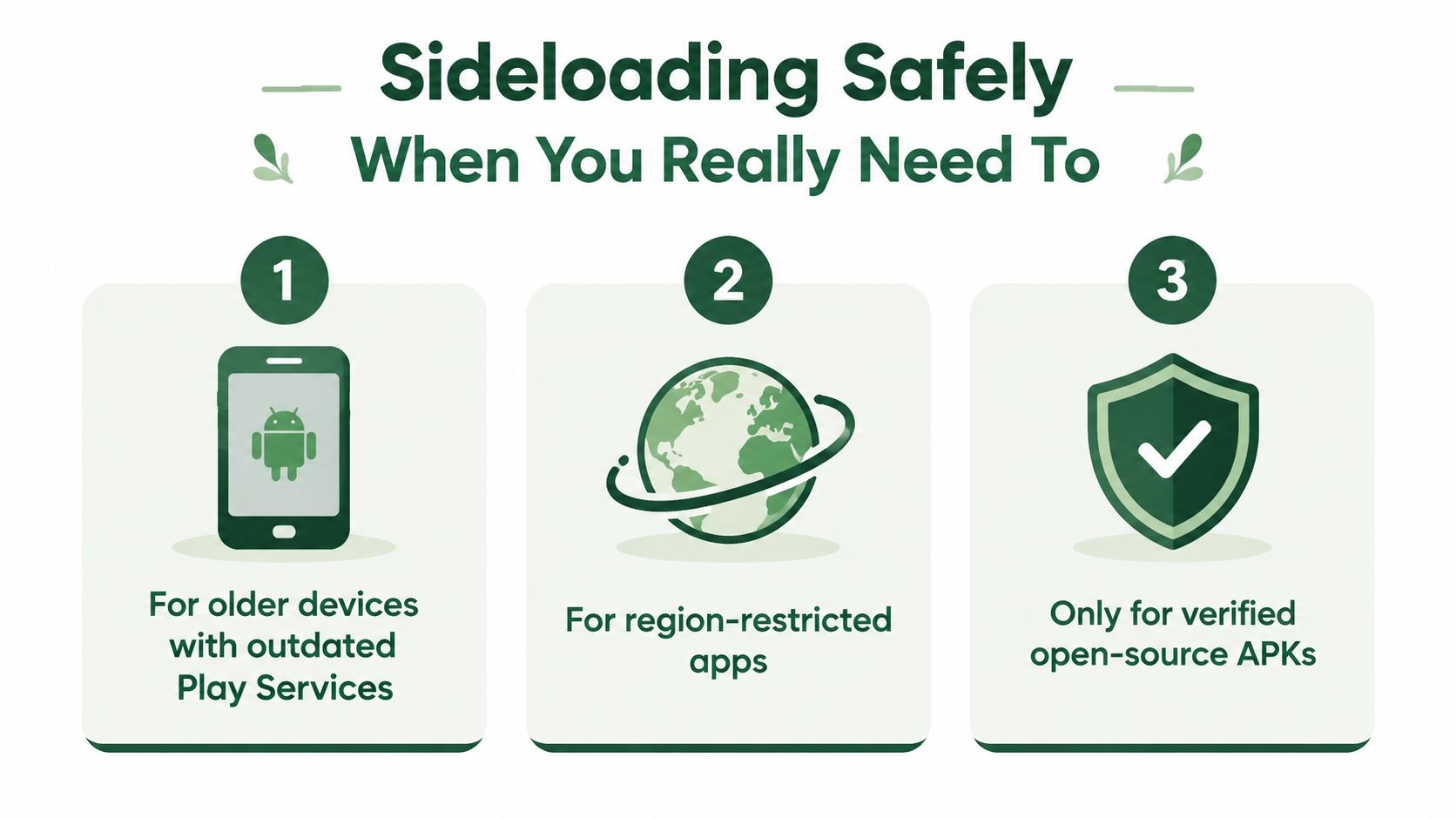
Google Play should be your default source for solitaire. Sideloading an APK makes sense only in narrow situations, such as an older device that no longer works with current Play Services, an app restricted in your region, or a verified open-source build whose files come from a trusted developer project.
Don't install a package because an APK mirror promises unlimited coins, a premium feature, or a familiar title at no cost. Random mirrors, unsigned packages, vague publisher names, and download counts in the dozens should end the process immediately. A verified open-source build, such as a legitimate Solitaire-Source-Code fork, still requires you to confirm that the repository and release file belong together.
Follow a narrow installation process
First, scan the APK with Google Play Protect or a reputable local virus scanner. If the developer publishes a SHA-256 hash, compare it with the file you downloaded. A mismatched hash means the file may have changed, and you shouldn't install it.
On Android, open Settings > Security > Install unknown apps. Allow the browser or file manager you're using, install the package, and immediately switch that permission back off. Then inspect the installed app's permissions and remove the installer file from your device.
Sideloading gives up some convenience. You won't receive Google Play's normal automatic updates, and you lose the same ongoing Play Protect coverage associated with an ordinary Play installation. Keep a backup of any local progress before replacing an app, and use this route only when the official store or browser option can't meet your needs.
Quick Fixes for Common Android Solitaire Problems
Android solitaire problems usually have simple causes, but the right fix depends on where the failure occurs. Start with the least destructive remedy, and don't clear data until you know whether the game syncs progress to Google Play Games or its own cloud service.
| Problem | Quick fix |
|---|---|
| Google Play download or update stalls | Clear the Play Store cache, reopen Google Play, and retry the installation. |
| The game force-closes during a deal | Force-stop it first. If the crash continues, clear app data to reset a corrupted local save. |
| The phone warms up or loses battery during long sessions | Close unnecessary background tabs and disable battery-heavy visual themes or animations. |
| A full-screen ad won't dismiss | Look for the small X in the top corner. Don't tap through the ad if your goal is simply to close it. |
| Progress disappears after changing phones | Enable Google Play Games synchronization or the app's own cloud-sync option before switching devices. |
Klondike rules themselves are fixed and simple. A standard deal uses a 52-card deck, seven tableau columns containing 1, 2, 3, 4, 5, 6, and 7 cards, with only the top card of each column face up, leaving a 28-card tableau and a 24-card stock, as described in these Klondike rules. If the app deals something radically different, you may have selected a variant rather than classic Klondike.
If an app still misbehaves, uninstall it, reboot the phone, and reinstall it. That reset often clears damaged temporary files and broken update states, but it can remove local progress, so confirm cloud synchronization first. If you're tired of repeating that cycle, the browser route avoids the install and update layer altogether.
Play Solitaire Gaming gives you instant browser access to Klondike and seven other classic variants, with no download or signup required. Visit Play Solitaire Gaming to deal a hand without permissions, compare the no-install experience with your current app, and choose the lighter way to play on Android.
Ready to play?