Solitaire No Ads Android Guide to Distraction Free Play
By Rajat Agarwal, Founder of Play Solitaire Gaming
Want solitaire no ads android that actually stays ad-free? Compare web play, paid apps, and settings to get smooth, private solitaire on Android.
You open solitaire for a quiet few minutes, expecting cards, a simple goal, and no mental clutter. Instead, a pop-up covers the tableau, a countdown delays the next deal, and a tiny close button sends you to an app store when you tap it. By the time you return, the relaxing round has become a battle with the phone.
That experience explains why people search for solitaire no ads Android options. “Ad-free” can mean a clean game with no advertising software, while “ad-light” may still include banners, interstitials, tracking, or prompts to pay later. The difference affects more than appearance. It can change battery use, data activity, privacy, and whether a short game stays focused.
You have three practical routes: play an ad-free version in your browser, choose a paid or no-ads native app, or adjust browser and Android settings to reduce unwanted activity. This guide compares those paths first, then shows how to create an app-like shortcut, test a paid app, and keep offline play private and dependable. For another perspective on uninterrupted card play, see this guide to solitaire without advertisements.
Table of Contents
- Introduction to Truly Ad Free Solitaire on Android
- Why Ads Hurt Solitaire More Than You Think
- Three Ways to Get Solitaire With No Ads on Android
- How to Play Ad Free Solitaire in Your Browser and Add It to Your Home Screen
- Choosing a Paid or No Ads Solitaire App Without Regrets
- Privacy Offline Play and Battery Tips for Distraction Free Solitaire
- Pick Your Best No Ads Solitaire Setup and Start Playing
Introduction to Truly Ad Free Solitaire on Android
A clean solitaire experience should feel almost invisible. You tap an icon, choose a deal, drag cards with your finger, and continue without an interruption asking you to watch something, claim a reward, or install another game. The rules remain the focus, not the business model around them.
That distinction matters because some apps use “free” and “no ads” loosely. A game may remove banners from the main screen but show a full-screen promotion after a win. Another may let you play without advertising at first, then introduce ads after an update. A reliable choice makes its advertising policy clear and behaves consistently when you play both online and offline.
For Android users, the easiest option often depends on what you value most:
- Free and immediate access means browser play, with no installation required.
- Native offline play points toward a paid app or a version with a clearly stated one-time ad-removal purchase.
- Broader control means using browser, data, notification, and privacy settings to reduce unwanted activity across your phone.
A browser game can work surprisingly well on a phone or tablet. Modern Android browsers support touch gestures, full-screen views, and home-screen shortcuts that open a site like an app. A native app may suit you better if you want a downloaded game available during travel, but you'll need to inspect its store listing, permissions, reviews, and payment model.
The right choice isn't the one with the most features. It's the one that keeps the session predictable. If your aim is a calm five-minute round, an ad-free game should launch quickly, respond smoothly, and avoid requesting access unrelated to card play. That standard gives you a useful way to judge every option that follows.
Why Ads Hurt Solitaire More Than You Think
Solitaire looks lightweight because its rules are simple and its graphics usually contain cards, backgrounds, and buttons. Advertising software adds a separate layer that may load images, videos, tracking tools, network requests, and interactive overlays. The game may be small, but the advertising system doesn't have to be.
One peer-reviewed study measured ad-supported apps against paid or ad-free equivalents and found average increases of 5.88% in CPU use, 42.15% in memory use, 93.19% in network use, and 21.27% in power consumption. The same research found that each independent ad added about 0.0486% of total battery capacity on a Nexus 4-class device. You can review the peer-reviewed Android advertising resource study for the underlying measurements.
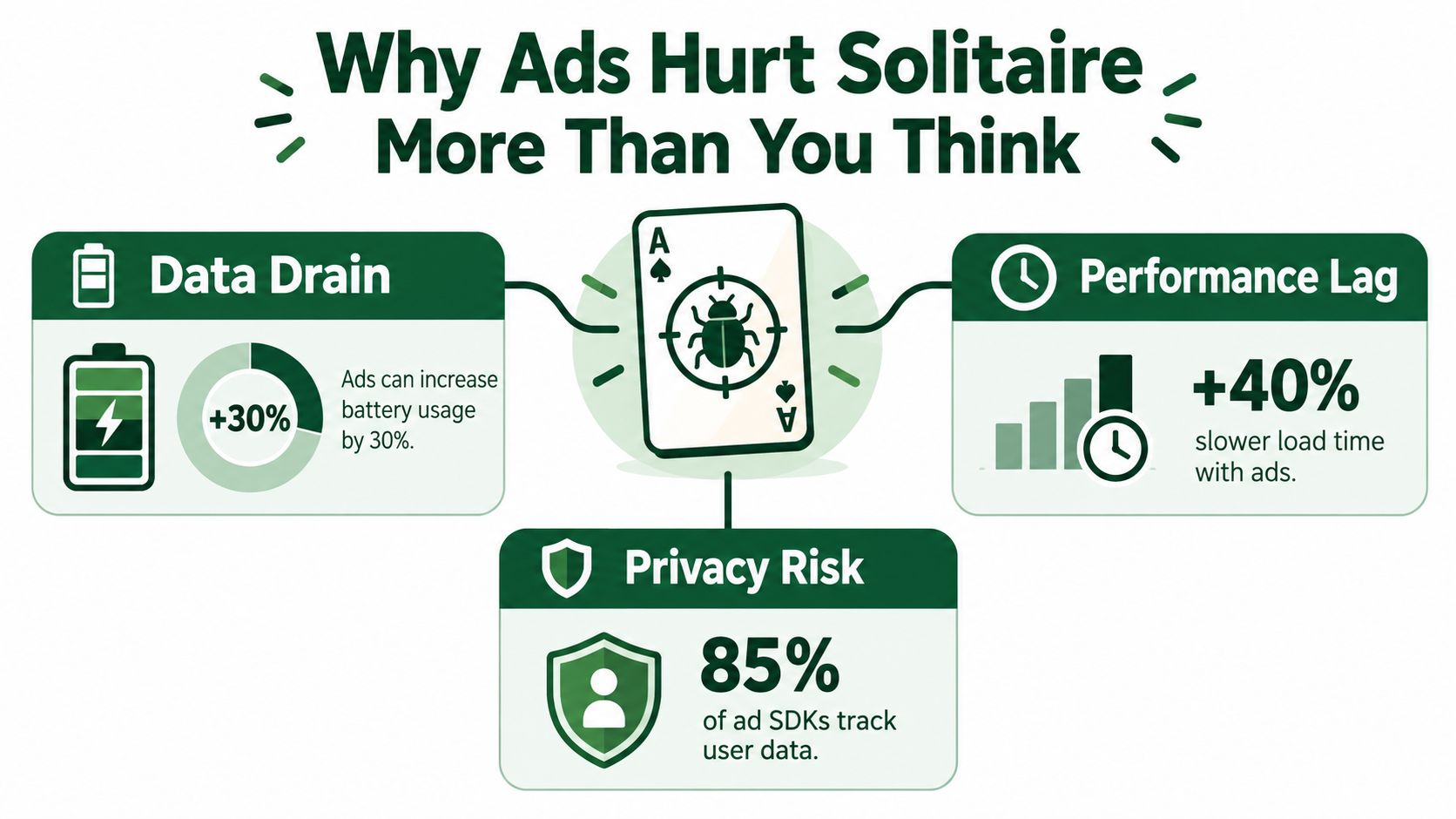
The technical cost of a simple game
Think of the solitaire board as a quiet desk. The cards need only a little space. An ad SDK is like adding a salesperson, camera crew, delivery service, and radio to that desk. They may not affect the rules directly, but they compete for memory, processing time, network access, and battery power.
Independent research on real Android apps found that ad-supported versions consumed, on average, 48% more CPU time, 16% more energy, and 79% more network data than comparable ad-free versions, as reported in this mobile advertising energy study. Those figures don't mean every solitaire app will behave identically. They do show why removing advertising components can make a lightweight game feel more stable, especially on older or lower-end phones.
During a drag-and-drop move, even a small delay feels obvious. You expect the card to follow your finger immediately. If the phone is also processing an ad, refreshing a network connection, or allocating memory for a video, the board can feel less responsive. The result is not merely an unattractive banner. It's a game that interrupts the rhythm of touch.
Practical rule: If a solitaire game needs constant network activity for advertising, it isn't as lightweight as the card board suggests.
The human cost of interruption
Ads also change how people use games. A survey covering gamers across the US, UK, Germany, Vietnam, and Japan found that 52% would quit a game after encountering multiple disruptive ad features, while 35% of consumers described gaming ads as annoying. The same report found that 37% of mobile gamers said in-game ads had influenced a purchase, which helps explain why publishers continue using them. These findings appear in the in-game advertising survey report.
Safety creates another concern. Independent reporting found that one in 58 ads served in games was malicious in the safety category, and one in 33 game ads related to gambling and betting. The report also stated that 61% of users discouraged others from playing games with poor ad experiences. These are reasons to evaluate ad-free play as a trust and attention choice, not just a cosmetic preference. See the report on malicious and risky in-app game ads.
For solitaire, the contrast is especially sharp. The game is meant to offer a controlled, low-pressure activity. An unexpected redirect, hard-to-close overlay, or aggressive promotion breaks that agreement. Removing the ad layer can therefore protect focus, reduce network activity, and make the app's behavior easier to understand. If you're interested in the broader role of calm card play, this discussion of solitaire brain benefits and mental health adds useful context.
Three Ways to Get Solitaire With No Ads on Android
You don't need to start by installing every app that appears in a search result. Choose the experience first, then select the tool that matches it. Browser play is usually the quickest route, a paid native app is often better for downloaded offline access, and system controls are useful when you want to manage more than one app.
| Approach | Cost | Ads and Trackers | Offline Play | Best For |
|---|---|---|---|---|
| Ad-free browser play | Usually free | No advertising layer when the site states that play is ad-free, but browser privacy settings still matter | Depends on the site and browser support | Free, instant play without installation |
| Paid or premium no-ads app | One-time purchase or subscription, depending on the app | Check whether advertising is removed completely and review requested permissions | Often available, but test it yourself | A native app with downloaded access |
| Browser, DNS, and Android settings | Settings may be free, while optional services can vary | Can reduce requests and notifications, but won't guarantee that every app becomes ad-free | Depends on the game | Users who want broader device control |
The table shows why no single method wins for everyone. A web option avoids an app download and can be opened from a home-screen icon, but its offline behavior depends on how the site is built. A paid app may give you a familiar Play Store installation and a downloaded game, but “remove ads” can mean a purchase inside an otherwise ad-supported product.
System settings deserve careful expectations. Android's Data Saver can limit background data, and a browser's notification controls can prevent unwanted prompts. A private DNS setting may block some advertising domains, but it can also interfere with legitimate content, and it won't remove an ad that is built directly into the game's screen. Treat these controls as supporting tools, not proof that an app is ad-free.
Before choosing, answer three simple questions:
- Do you need the game without a connection? If yes, test a native app in airplane mode before relying on it.
- Do you want zero installation? If yes, use browser play and add a shortcut.
- Do you want fewer distractions across your phone? If yes, review notifications, permissions, and background data at the system level.
The classic format itself is widely understood. Klondike uses a standard 52-card deck, deals 28 cards into seven tableau columns arranged from one card through seven, turns only the top card of each column face up, and leaves 24 cards in the stock. The four foundations start empty and build by suit from Ace to King, as described in these Klondike solitaire rules. That familiar structure makes a clean interface more valuable than a crowded feature list. For more Android download guidance, see this classic solitaire download guide.
How to Play Ad Free Solitaire in Your Browser and Add It to Your Home Screen
Browser play is the fastest way to try a no-ads solitaire experience without committing to an app. Open Chrome on your Android phone, visit an ad-free solitaire site, and choose a game that responds properly to taps and swipes. Play Solitaire Gaming, for example, offers browser-based variants including Klondike, Spider, and FreeCell, along with other classic formats.
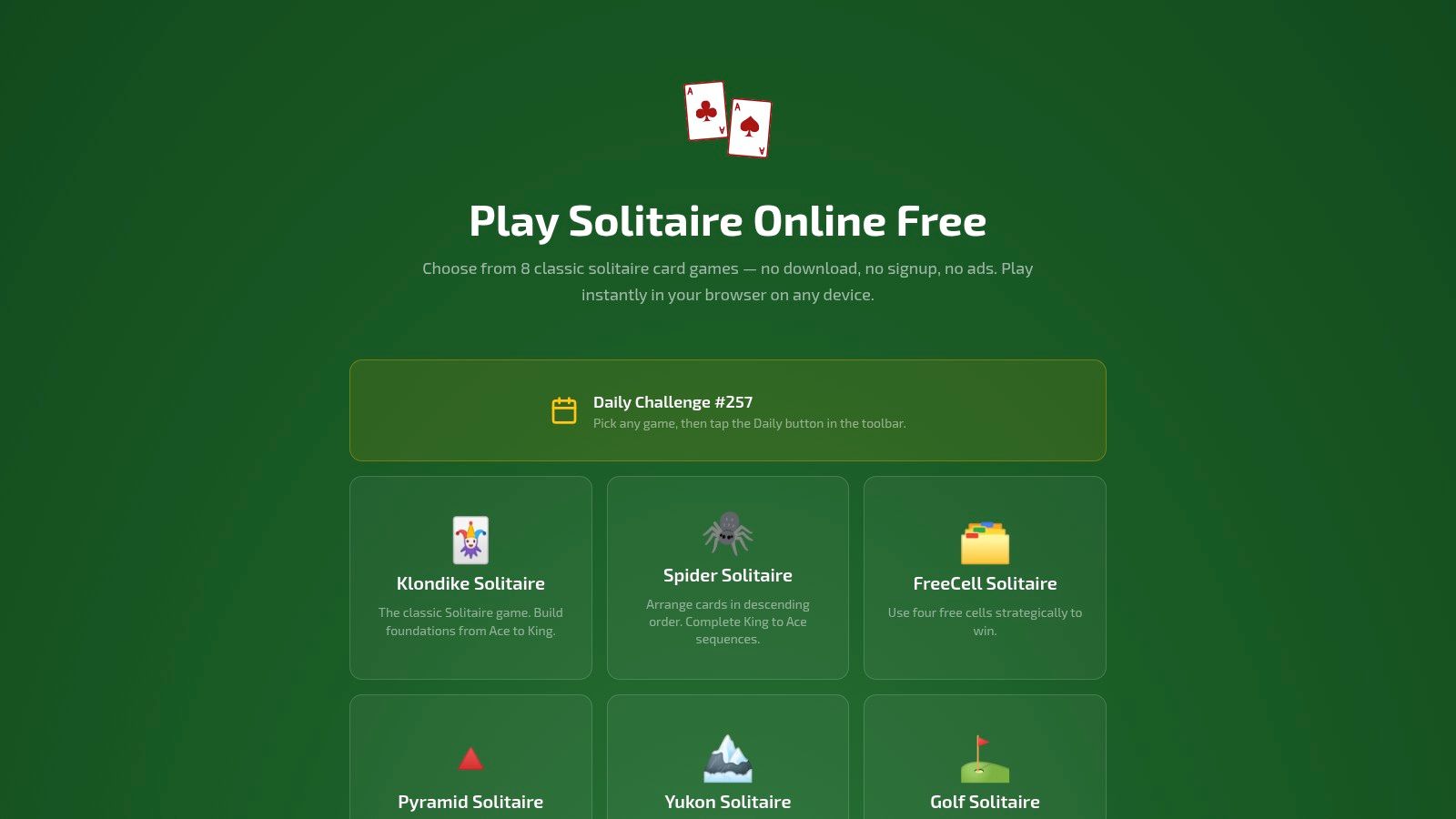
Test the game before saving it
Start with a few moves rather than adding the page immediately. Drag a card between tableau columns, tap a card to see whether it moves automatically, open the menu, and check whether the board remains visible without banners or pop-ups. On a tablet, rotate the screen if you prefer a wider layout.
Look for practical signals:
- The cards should follow your finger without noticeable hesitation.
- A new deal should open without an unexpected promotion.
- The site should explain whether sign-in is optional.
- Settings should be understandable, especially for sound, hints, statistics, and notifications.
No download or signup is needed for basic browser play on Play Solitaire Gaming. Optional Google or Apple sign-in can support private cloud sync for users who want their stats to follow them between devices. If you want to try another format after the standard games, you can explore these free online TriPeaks games.
Create an app-like shortcut
Once the game works well, keep it one tap away:
- In Chrome, open the browser menu.
- Choose Add to Home screen, or select an Install app prompt if Chrome displays one.
- Confirm the name and tap Add or Install.
- Move the new icon beside your other games.
The wording can vary slightly by Android version and browser. The result is the same: an icon launches the game directly, so you don't have to search through bookmarks or type a web address each time.
This shortcut isn't identical to a fully downloaded native app. It opens a web experience, so offline access depends on the site's design and the browser's stored data. It also gives you a simple way to remove the shortcut later without uninstalling anything from the Play Store.
If you don't want alerts, open Android's notification settings and disable notifications for the browser or the site when that option appears. If the site requests permission that you don't need, decline it. A solitaire shortcut should remain useful without access to contacts, files, microphone, or location.
Choosing a Paid or No Ads Solitaire App Without Regrets
A native app makes sense when you want a Play Store installation, downloaded assets, or a game that remains available when connectivity is unreliable. The mistake is assuming that a paid download automatically means a clean experience. Some apps charge for extra features while keeping advertising in the free or standard game.
Start with the store listing. Look for a clear statement that the app contains no ads, then check whether the listing mentions in-app purchases or a separate payment to remove advertising. Read recent reviews for specific descriptions of banners, interstitials, pop-ups, and ads that appeared after an update.
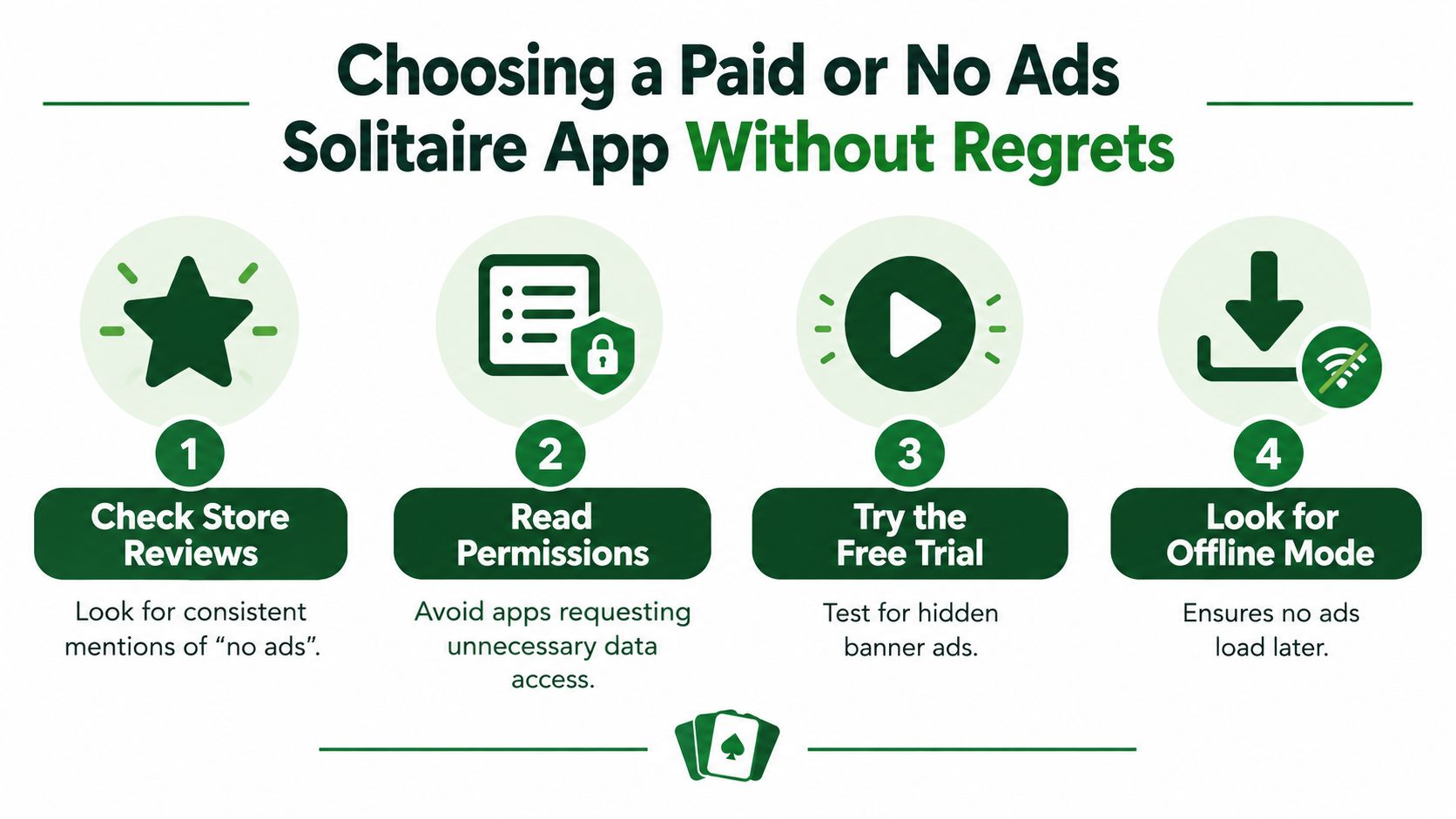
Use a simple vetting checklist
- Read the business model: Confirm whether the payment is one-time, recurring, or tied to an optional upgrade.
- Inspect permissions: A solitaire board shouldn't need broad access unrelated to gameplay. Review the permission list before installing.
- Study review details: Look for repeated comments about advertising after updates, not just the star rating.
- Check the developer identity: Make sure the listing names a recognizable developer and provides a way to contact them.
- Test the purchase result: If you pay to remove ads, reopen the game and check multiple screens, including the results page and settings.
Subscriptions aren't automatically bad, but they should solve a need you have. If you only want classic card play, a recurring charge may offer less value than a one-time ad-removal purchase. Keep the receipt and verify the purchase is linked to the Google account you use on the device.
Verify offline behavior yourself
Turn on airplane mode after installation and launch the app. Try a new deal, undo a move, open the statistics screen, and return to the main menu. If the app requires an online connection for ordinary play, it isn't a strong fit for offline use, even if the store listing sounds promising.
Google Play Protect can help scan installed apps, but it doesn't certify that an app is pleasant, private, or free from advertising. Android's Data Saver can restrict background data, while notification controls can stop promotional alerts. Those settings reduce unwanted activity, yet they can't replace careful app selection.
A private DNS setting may block certain ad domains, but results differ by app and network. Don't treat it as a guarantee. If an app still displays ads after your purchase, first check its account and restore-purchase options, then contact the developer or request help through Google Play.
Privacy Offline Play and Battery Tips for Distraction Free Solitaire
Ad-free play gives you a simpler privacy decision. Without advertising components, a game has fewer obvious reasons to contact ad networks or load promotional content. That doesn't prove the entire app collects nothing, so you should still read its privacy policy, permissions, and sign-in choices.
No-signup play is the most straightforward arrangement. You open the game and keep your activity on the device or in the browser. Optional cloud sync can be useful if you switch between a phone, tablet, and desktop, but it usually means creating an account and sharing the information required for synchronization. Choose the arrangement that matches your priorities instead of enabling sync automatically.
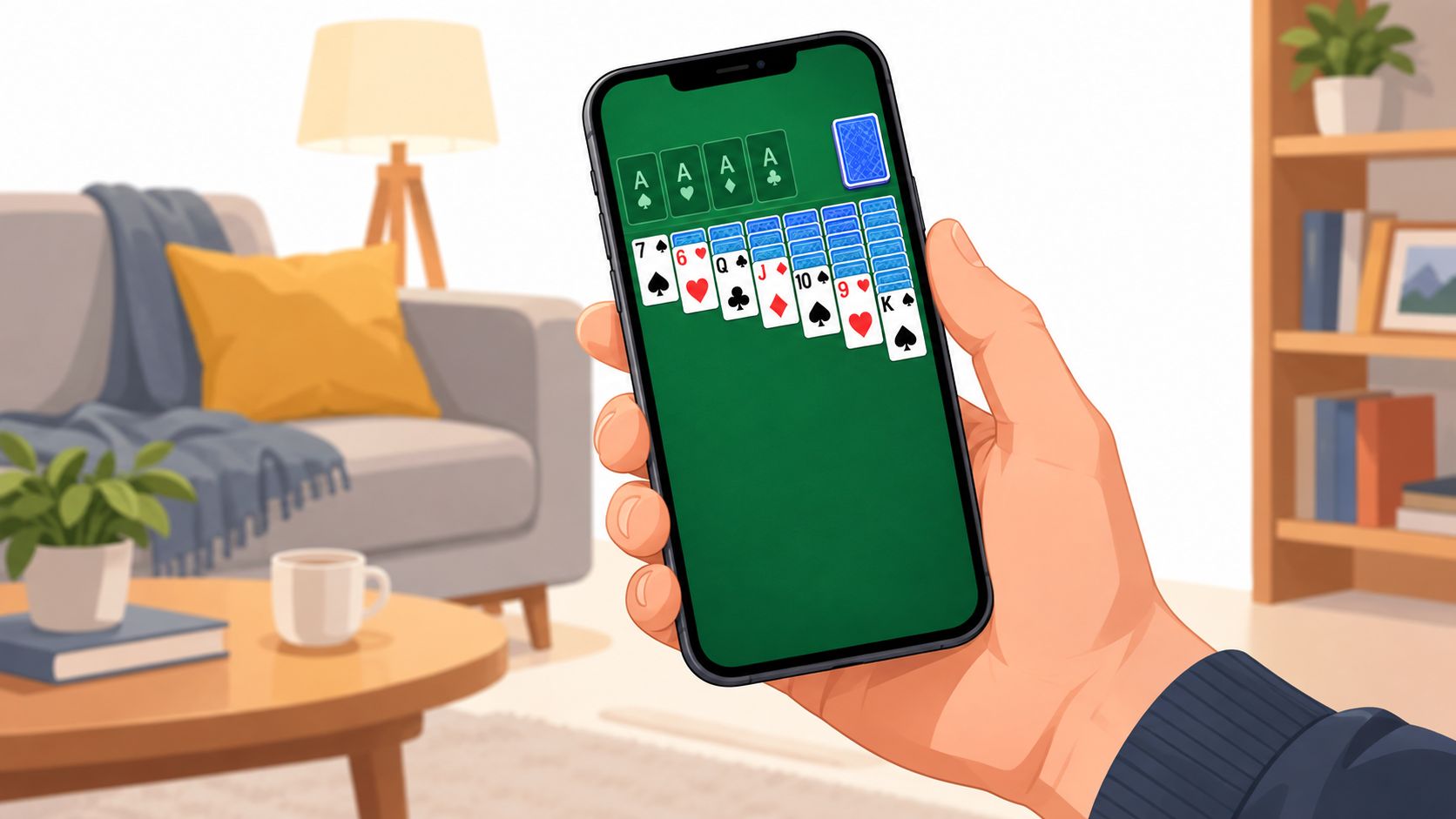
Keep offline sessions intentional
Before a trip, open the game while connected, then test it with airplane mode. This tells you whether the board, cards, and core controls are already available. It also prevents the frustrating situation where a supposedly casual game refuses to start because it wants to load an advertisement or remote feature.
Offline play is useful beyond travel. It reduces dependence on mobile data in weak-signal areas and keeps a short break from turning into a series of loading screens. If you use a browser shortcut, remember that offline availability depends on the site's caching behavior. A native app generally gives you a clearer offline test, but you still need to perform it.
Reduce background distractions
Disable game notifications unless you specifically want daily challenges or reminders. Keep Android's background-data controls available for apps that don't need constant updates, and remove unused solitaire apps rather than letting several advertising SDKs remain installed.
A clean setup also helps battery life indirectly. Fewer network wakeups, video loads, and background processes leave the phone with less work around each session. On an older device, choose a game with simple visuals, avoid animated menus when possible, and close other heavy apps if card movement feels delayed.
A private game is easier to trust when you know what it can access, when it connects, and what still works without a connection.
Review your choice after major updates. Check the store listing, permissions, notification behavior, and first few rounds. An app that was calm last month may change its payment or advertising approach later, so a quick review protects the experience you intended to create.
Pick Your Best No Ads Solitaire Setup and Start Playing
Choose the route that matches your actual habit, not the feature list.
If you want free and immediate play, use an ad-free browser version and add it to your Android home screen. This is the quickest setup because there's no app download, account requirement, or payment decision. You get a one-tap entry point and can remove the shortcut whenever you like.
If you want native offline access, evaluate a paid or premium app carefully. Check its advertising language, permissions, reviews, and purchase type, then test airplane mode before you depend on it. Paying for a game only makes sense when the result remains comfortable, private, and usable after the purchase.
If you want system-wide control, combine careful app selection with Android notification and background-data settings. Browser controls and private DNS can help reduce unwanted requests, but neither one guarantees that an app with built-in advertising will become completely ad-free.
For many Android users, the browser shortcut is the sensible first move. It lets you try a quiet round immediately and judge touch controls, loading behavior, and offline expectations before installing anything. Once the game feels right, keep the icon where you'll see it, and let solitaire return to its original purpose, a focused break with no interruptions competing for your attention.
Play Solitaire Gaming offers instant browser-based solitaire on Android with no download or signup required, plus classic variants such as Klondike, Spider, FreeCell, Pyramid, and TriPeaks. Visit Play Solitaire Gaming to start an ad-free round and add a distraction-free shortcut to your home screen.
Ready to play?